
- Streaming Products
- BD-DVD products
- Useful Articles
- support
Article Editor: Young leaves
Jan 01, 2026
Experience the best music converter now!
Share this article!


If you subscribe to YouTube Premium or YouTube Music Premium, you can access many member-only features on YouTube Music. New users are offered a one-month free trial period, and if you cancel within this period, no charges will be incurred. However, if you only want to use the free trial period or are thinking of canceling your paid membership, you may be looking for a way to cancel your YouTube Music Premium membership.
This article explains in detail how to cancel YouTube Music Premium. It also provides a thorough explanation of when to cancel, things to be aware of when canceling, and what to do if you can't cancel. If you're considering canceling your YouTube Music subscription, be sure to read this article.
Related Posts:
Even if you cancel your YouTube Music paid plan, you will not immediately lose access to the service. If you are already using a paid plan, you can continue to use your membership benefits until your next renewal date even after completing the cancellation procedure. Therefore, you can cancel at any time up until your next renewal date.
If you cancel during the free trial period, you can still use the benefits until the end of the free trial period. Similarly, you can cancel at any time up until the automatic renewal date.
However, you will be automatically charged after the free trial period ends or the next renewal date. To avoid being charged, we recommend canceling your subscription at least 24 hours before your next renewal date.
Cancellation during the free trial period: If you cancel during the free trial period of YouTube Premium or YouTube Music Premium, no charges will be incurred. Even after cancellation, you can continue to use the service for free until the end of the trial period.
Usage period after cancellation: Even if you cancel, you can still use the service as a premium member until the next renewal date.Save your favorite songs locally before canceling YouTube MusicIf you do this, you will be able to play the content freely without any restrictions even after canceling your subscription.
Confirmation of cancellation procedures: If you want to cancel YouTube Music Premium, be sure to select "Cancel" on the final screen. "Pause" is different from canceling. After canceling, a cancellation confirmation notice will appear in the YouTube app or on your computer, and the end date will also be listed on the Paid Membership screen.
I can't cancel the subscription even if I delete the app.: Deleting the YouTube Music app or account will not automatically cancel your subscription. To officially cancel your subscription, you must follow the steps below.
You can usually cancel your YouTube Premium or YouTube Music Premium subscription easily on your device. However, if you subscribe to YouTube Premium through Google Play or au, you'll need to cancel using a specific method for each subscription. Below, we'll explain in detail how to cancel your YouTube Music Premium subscription.
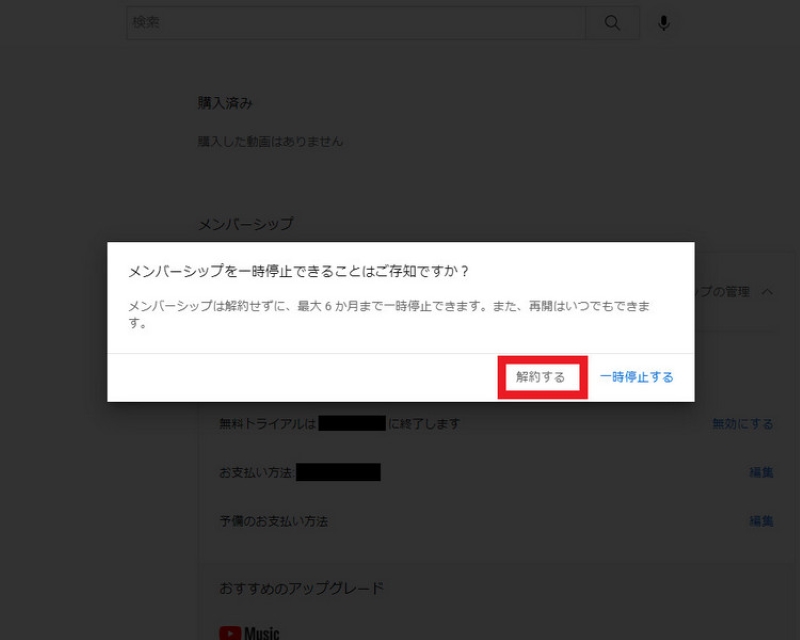
If you subscribe to YouTube Premium through a web browser, you can cancel your subscription directly from the browser. You can access the web browser from any device, including Android, iPhone, iPad, and PC, and complete the cancellation process.
step 1, From a web browser such as Chrome or SafariYouTube Payment Managementand click "Manage Membership."
Step 2, Click Disable.
Step 3, Click Continue.
Step 4, Select your reason for canceling, tap "Next," then click "Cancel" to cancel YouTube Music Premium.
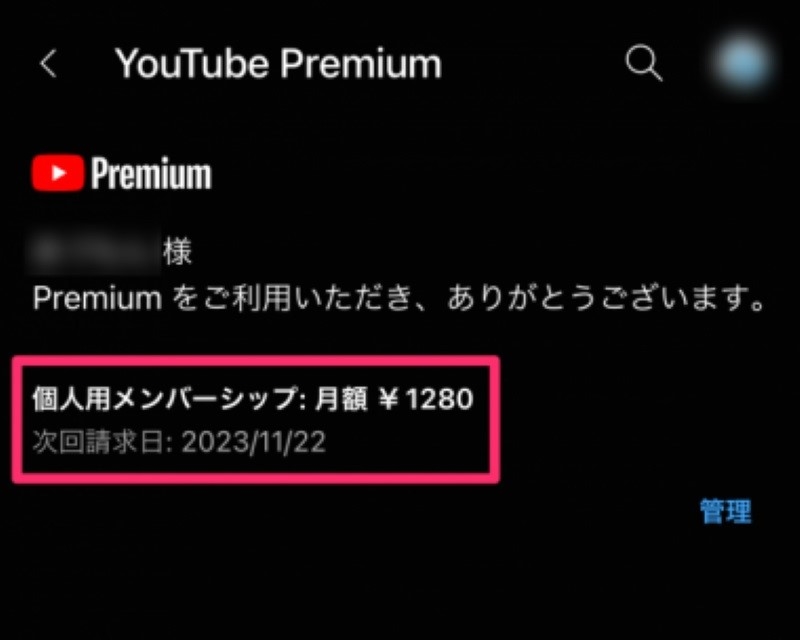
step 1, Open YouTube Music and tap your profile icon in the top right corner.
Step 2, Tap "Paid Memberships" and select the membership you want to cancel.
Step 3, Tap "Cancel," select a reason for canceling, and tap "Next."
Step 4, Click "Cancel" to cancel YouTube Music Premium.
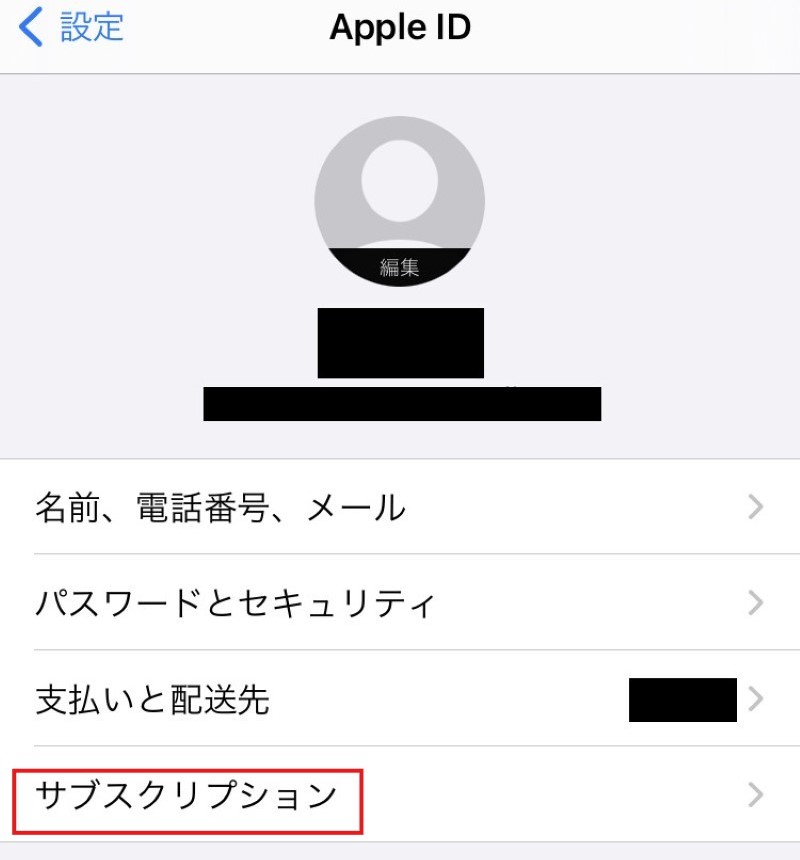
step 1, Open the System Management Settings app on your iPhone or iPad and tap "Subscriptions."
Step 2, Tap YouTube Premium or YouTube Music Premium.
Step 3, Tap Cancel Subscription.
Step 4, On the cancellation confirmation screen, tap "Confirm."
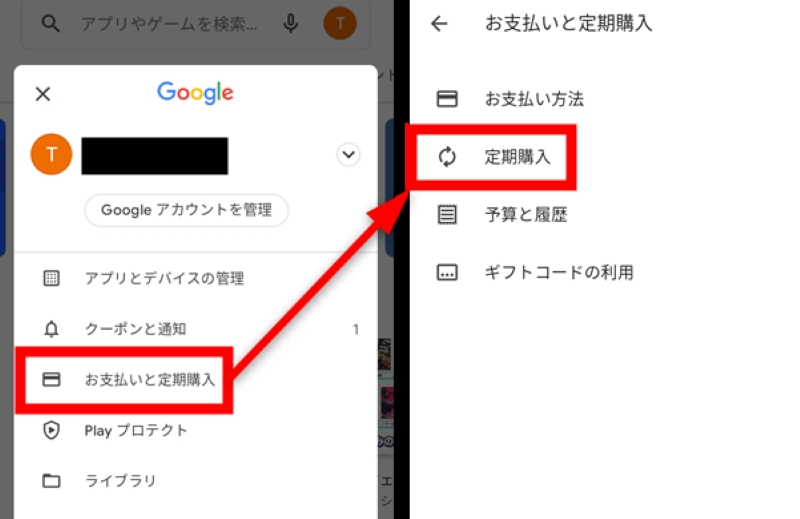
If you subscribe to YouTube Premium through a Google Play subscription, you can cancel your subscription through the settings of your Google Play account. The specific cancellation procedure is as follows:
step 1, Open the Google Play app on your Android device.
Step 2, Tap your profile icon in the top right corner.
Step 3, Tap "Subscriptions" in the "Payment & Subscriptions" section.
Step 4, Select YouTube Premium or YouTube Music Premium.
Step 5, Tap "Cancel Subscription," then cancel your YouTube Music Premium subscription.
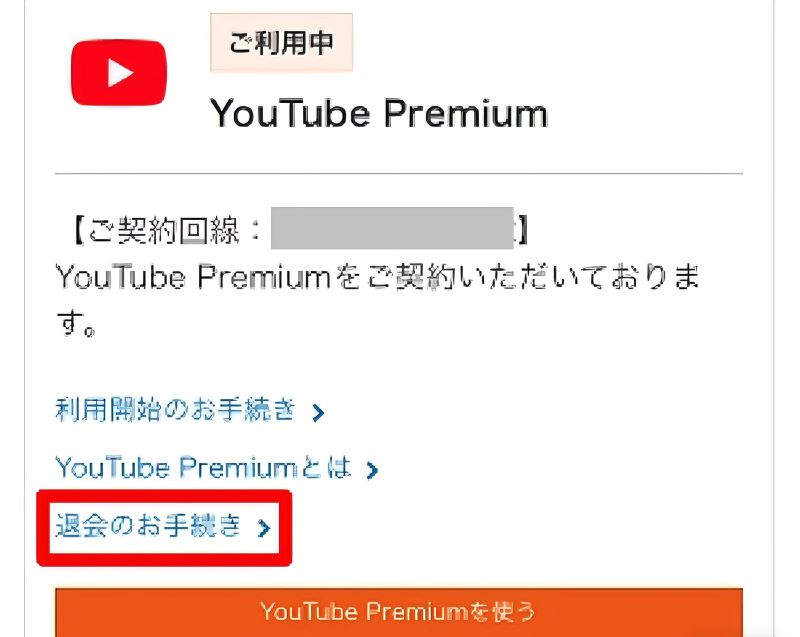
If you signed up for YouTube Premium at an au retailer or on the au website, you can cancel it through "My au." Follow the steps below to cancel your YouTube Music subscription through "My au."
step 1, "Entertainment (My au)". Enter your au ID and password to register your account.
Step 2, Scroll down the page to the YouTube Premium section and tap "Cancel Membership."
Step 3, Check the details and tap "Agree and proceed" to complete the process.
If you subscribe to YouTube Premium or YouTube Music Premium, you'll get the following YouTube Music membership benefits:
• Ad-free playback
• Background playback
• Download and play music and podcasts offline
• Use "Audio-only mode"
If you cancel your YouTube Music Premium subscription, you will no longer be able to use these benefits. Also, please note that music and playlists saved offline through YouTube Music Premium will no longer be playable 30 days after the service ends.
If you want to overcome these restrictions and download YouTube Music songs for offline playback forever, we recommend using professional music download software to convert and save them in a universal format such as MP3.
If you want to continue enjoying music offline after canceling YouTube Music Premium, you can use the music download software "StreamByte for MusicWe recommend using ".
"StreamByte for Music"teeth,YouTube Music PC appNot only can you enjoy music as a music player, but you can also save and play your favorite songs offline. Using this software, you can download and save YouTube Music songs in common formats such as MP3 and AAC, so you can listen to them anytime, anywhere, even if you cancel your premium subscription. Play saved songs offline with high sound quality and high speed.Background PlaybackYou can also freely try out all the features of "StreamByte for Music" for free, so please give it a try.
StreamByte for Music
This is the perfect music converter for those who want to enjoy streaming music with the original sound quality. It supports multiple music platforms and allows you to save music while maintaining high sound quality.
Key Features and Highlights of StreamByte for Music
step 1, "StreamByte for MusicDownload and install YouTube Music on your Windows PC or Mac. Launch the software and click the YouTube Music icon to access the built-in web player.
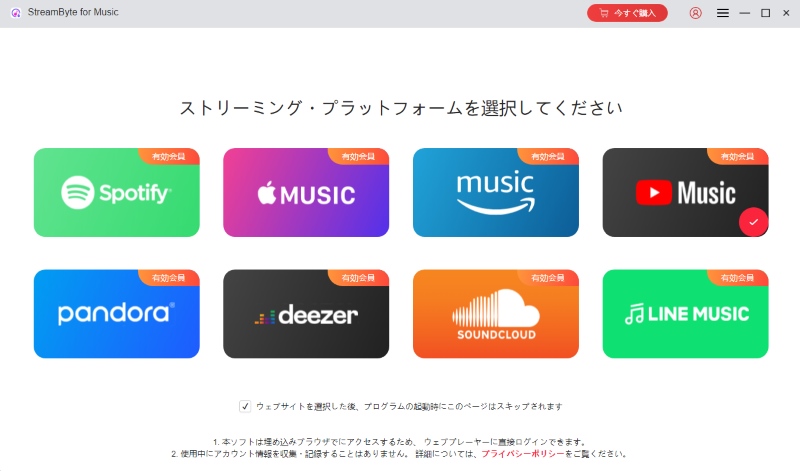
Step 2, Log in to YouTube Music with your account and search for your favorite song, album, or artist in the search box.
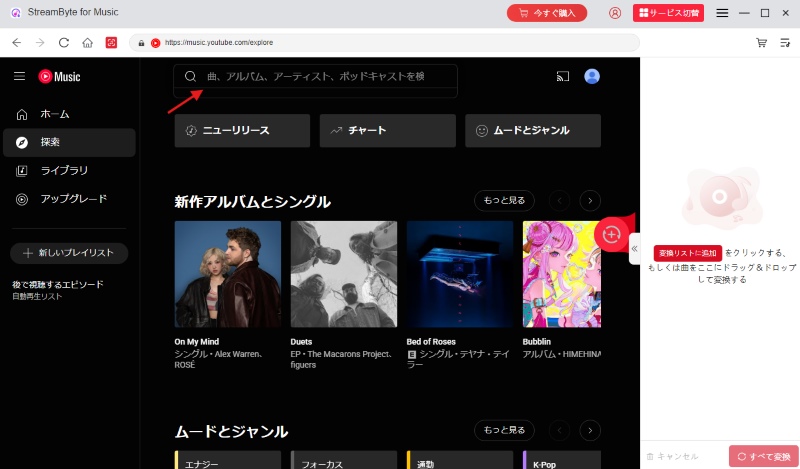
Step 3, Once you find the YouTube Music songs you want to save, click the "Add" button or drop them on the right side to add them to the conversion list. You can also add albums or playlists in bulk.
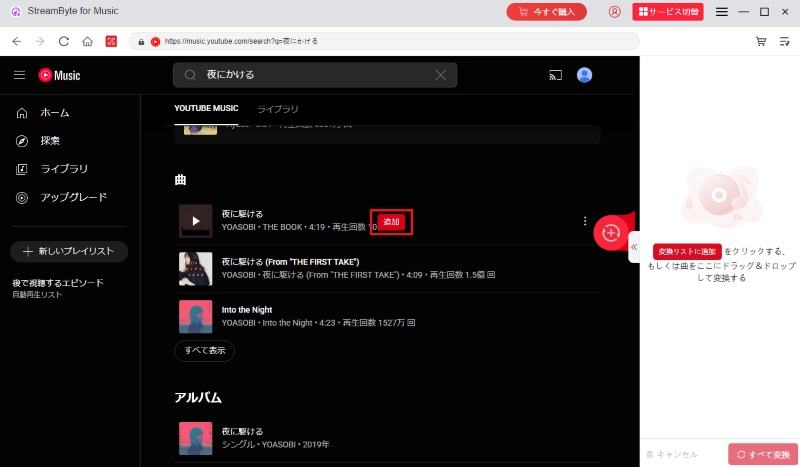
Step 4, You can customize the output format, bit rate, sampling rate and other settings for the added YouTube Music songs as needed. After adjusting the settings, click "Convert All" at the bottom right to start downloading YouTube Music songs.
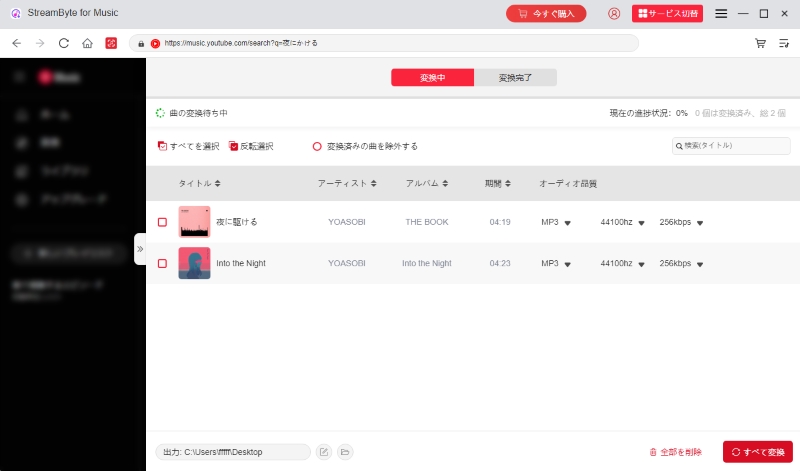
Step 5, You can check the download progress of YouTube Music songs on the screen. Once the download is complete, go to the "Conversion Completed" tab to view the locally saved songs. Downloaded YouTube Music songs can be played offline even if you cancel your Premium subscription.
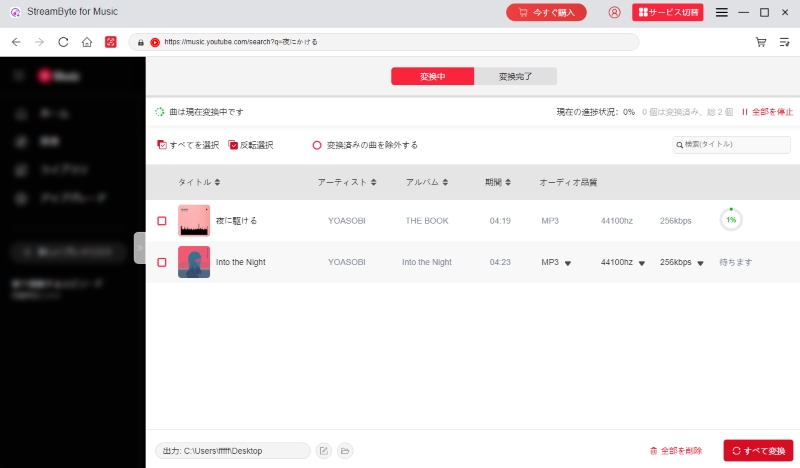
"StreamByte for Music" , whether you're a free or paid YouTube Music member, you can follow these simple steps.Download YouTube Music to PCYou can save your music permanently by downloading it. If you are a paid member, you can play downloaded music offline even after canceling your premium subscription. It also has the ability to download multiple songs, albums, and playlists from YouTube Music at once, and to edit and save ID3 tag information. StreamByte for Music offers a free trial version, so download it now and start using it.
100% safe and virus free
100% safe and virus free
If you can't cancel your YouTube Premium or YouTube Music Premium subscription, the following may be the cause. Please check the cause and try the corresponding solution.
The cancellation may have already been completed
First, check your contract status. If you have already canceled your YouTube Music Premium subscription, you will not be able to cancel it again.YouTube payment management pageVisit to register and check your current subscription status in the "Paid Membership" section of your account.
If you subscribe to Premium through your Apple or Google Play account
If you subscribed to YouTube Premium via your Apple or Google Play account, your billing will be handled by Apple or Google Play, respectively. Unlike the cancellation process via a typical browser, you must cancel through the corresponding app. To cancel your paid membership, please cancel through the App Store (for Apple) or the Google Play app (for Google Play).
Device or browser malfunction
When canceling YouTube Music Premium via a web browser, temporary issues with your device or browser may prevent the process from completing successfully. Please refresh your web browser or restart the app, then try canceling again. You can also try switching to a different browser or device, logging in to your account, and trying again.
Yes, you can cancel your YouTube Music Premium subscription even during the free trial period. Even if you cancel during the free trial period, you will not be charged and you will be able to enjoy the YouTube Music Premium membership benefits until the end of the trial period.
Also, during the free trial period, you can download the music from the software "StreamByte for MusicBy using this service, you can save YouTube Music songs in formats such as MP3 with lossless sound quality, and you can play them offline for free even after canceling your premium subscription.
100% safe and virus free
100% safe and virus free
With YouTube Premium or YouTube Music Premium, whether you are on a free trial or a paid membership, you can continue to use the membership service even after canceling your subscription until the end of the trial period or your next renewal date.
You can cancel your subscription at any time before the billing date if you are on a free trial, or before the next renewal date if you are currently using a paid plan. If you forget to cancel, you will be automatically charged, so we recommend that you complete the cancellation procedure at least 24 hours before the billing date or next renewal date.
YouTube Music Premium has a pause feature that allows you to pause your paid subscription for up to six months without canceling. Simply set your desired resumption date using the pause feature and you'll be able to enjoy your Premium membership benefits again.
Here's how to use the pause feature on YouTube Music Premium:
step 1, Go to your YouTube payment management page.
Step 2, Select Manage Members and click Disable.
Step 3, Click "Pause," specify a time period between 1 and 6 months, and then click "Pause Membership" to complete the process.
If you want to resume your Premium subscription before the scheduled resumption date, you are free to do so at any time. You will be automatically charged at the end of the pause period.
This article provides detailed instructions on how to cancel YouTube Music Premium, as well as points to keep in mind before and after canceling. Subscribing to YouTube Premium or YouTube Music Premium gives you access to benefits such as ad-free listening, music downloads, background playback, and offline playback, but these features will no longer be available after you cancel. We also explained how to continue enjoying music offline without restrictions even after canceling YouTube Music Premium.
"StreamByte for MusicWith StreamByte for Music, you can download and permanently save YouTube Music songs locally, allowing you to play them offline anytime, anywhere, even after canceling your YouTube Music Premium subscription. It removes DRM from YouTube Music songs and saves them to your computer in popular formats, such as MP3, AAC, and FLAC, at up to 320kbps high quality. You can freely transfer and play saved songs on other players or devices without restrictions. It also features a batch download function and the ability to edit and preserve ID3 tag information, making music storage convenient and efficient. StreamByte for Music offers a free trial, so if you're interested, please download and try it out.
100% safe and virus free
100% safe and virus free
Born in Tokyo. Studied music culture at Tokyo Woman's Christian University, and after graduating, worked in the music distribution and download industry, gaining experience as an editor and writer. Has a deep understanding of a wide range of music genres, from rock, J-POP, classical, and metal, and is familiar with major services such as Spotify, Apple Music, and YouTube Music.
He has written over 300 articles, with a total of 6 million page views. He strives to provide accurate and easy-to-understand information so that readers can enjoy music more conveniently and safely. He currently writes articles for the StreamByte editorial department, focusing on how to use and utilize music download and conversion software.
Experts in supporting offline listening of streaming music services
Subscribe to StreamByteCopyright © 2026 StreamByte. All rights reserved.


Get the latest news, product upgrades, information, guides, discounts and more about StreamByte.
Please enter a valid email address.




 English
  Japanese
  Chinese (traditional)
  German